Blog · Lab Tools / Audio
Free Online Audio Visualizer: Ten Ways to See a Song, Saved as Video
Ten free audio visualizers that run in your browser: bars, wave, spectrum, particles, spectrogram and more. Save a 1080p or 4K MP4 with your song and no watermark.
An audio visualizer turns sound into moving pictures. The one in the AIKIZI Lab listens to your whole song once before it plays, so every picture is tied to the exact second you hear: the spectrum, the beats, the loudness and how bright the sound is. It draws on your graphics card, and it can save the result as an MP4 with your song in it.
There are ten modes. Eight of them have a page of their own, so you can open the one you want directly.
The eight with a page of their own
Every picture below is the same moment of the same song, the sample track Mystic Breeze at 1:35, drawn by each mode.

Audio visualizer: Spectrum
A ring of 72 bars, low notes at the top, with a thin echo of the spectrum half a second earlier. The hub for all eight.
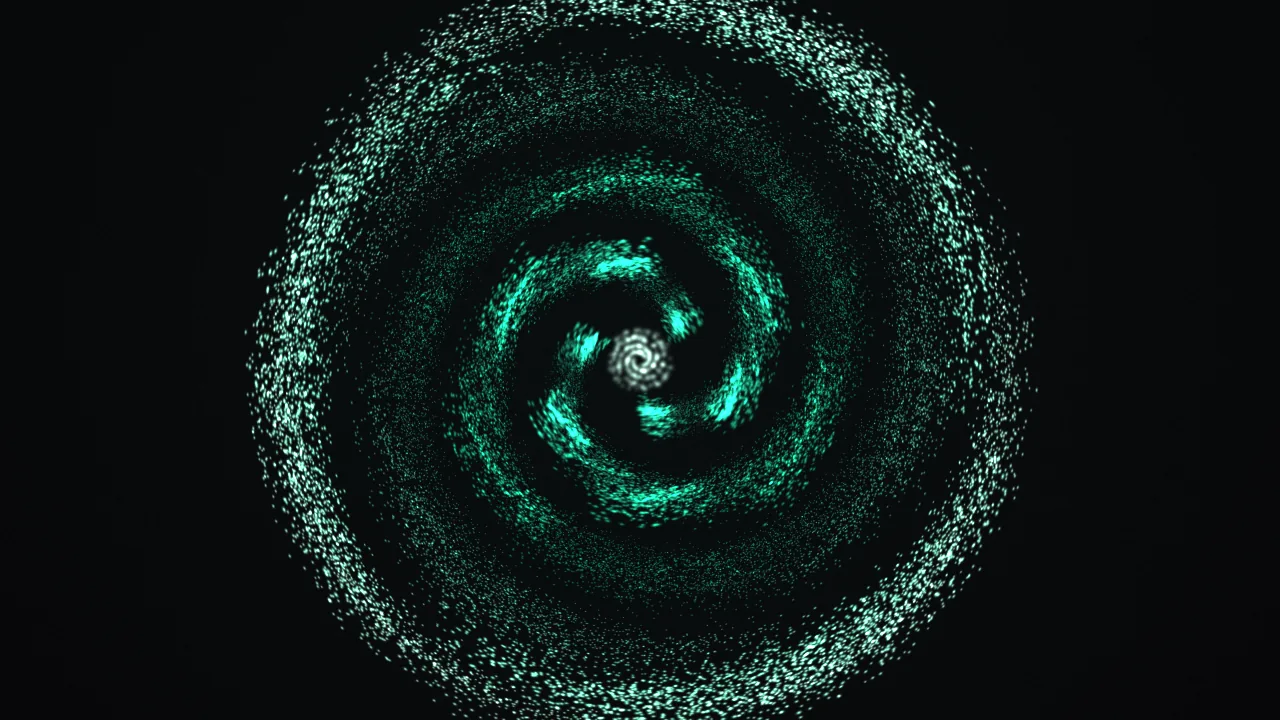
Music visualizer: Particles
Tens of thousands of particles, each tied to one slice of the spectrum. They circle on the song's loudness, so a loud passage races and a quiet one drifts.
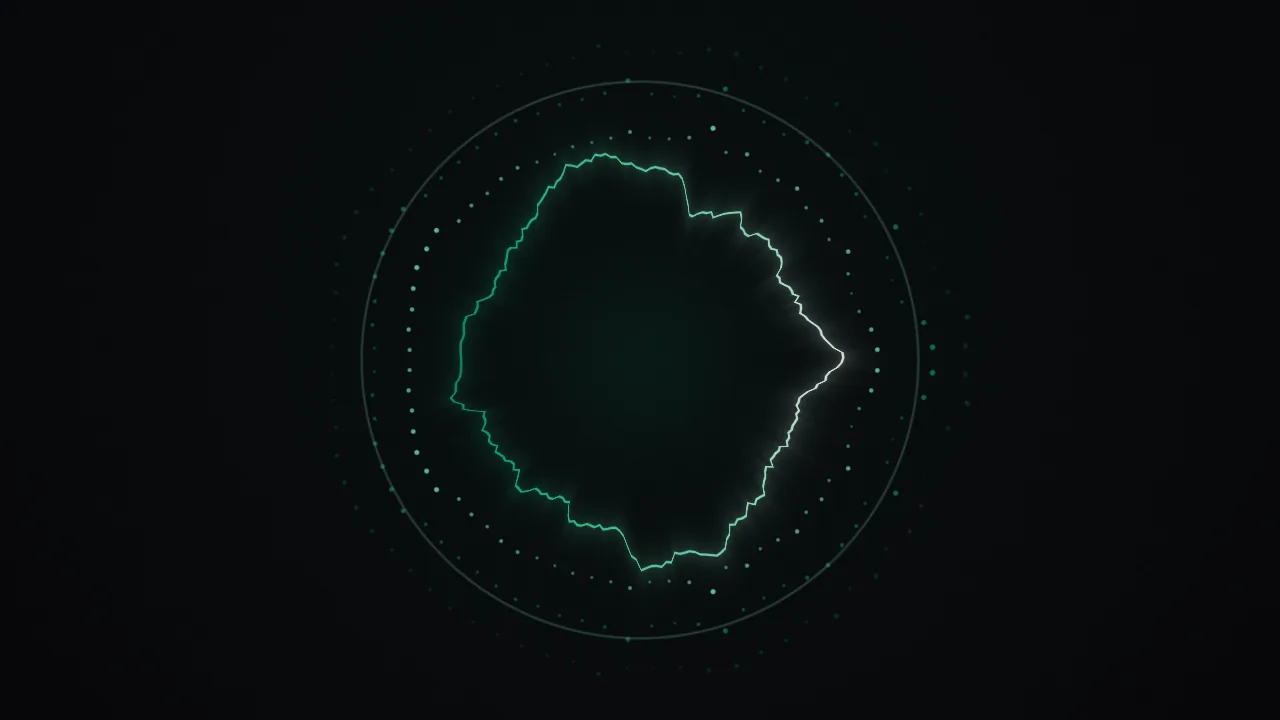
Microphone visualizer: Waveform ring
The sound wave itself, bent into a circle, with the recent spectrum around it. Made for the microphone: speak, sing or clap and it answers at once.

Sound visualizer: Fluid
Colour folding like ink in water. The currents move with the loudness, the bass folds them deeper and the high notes light their edges.
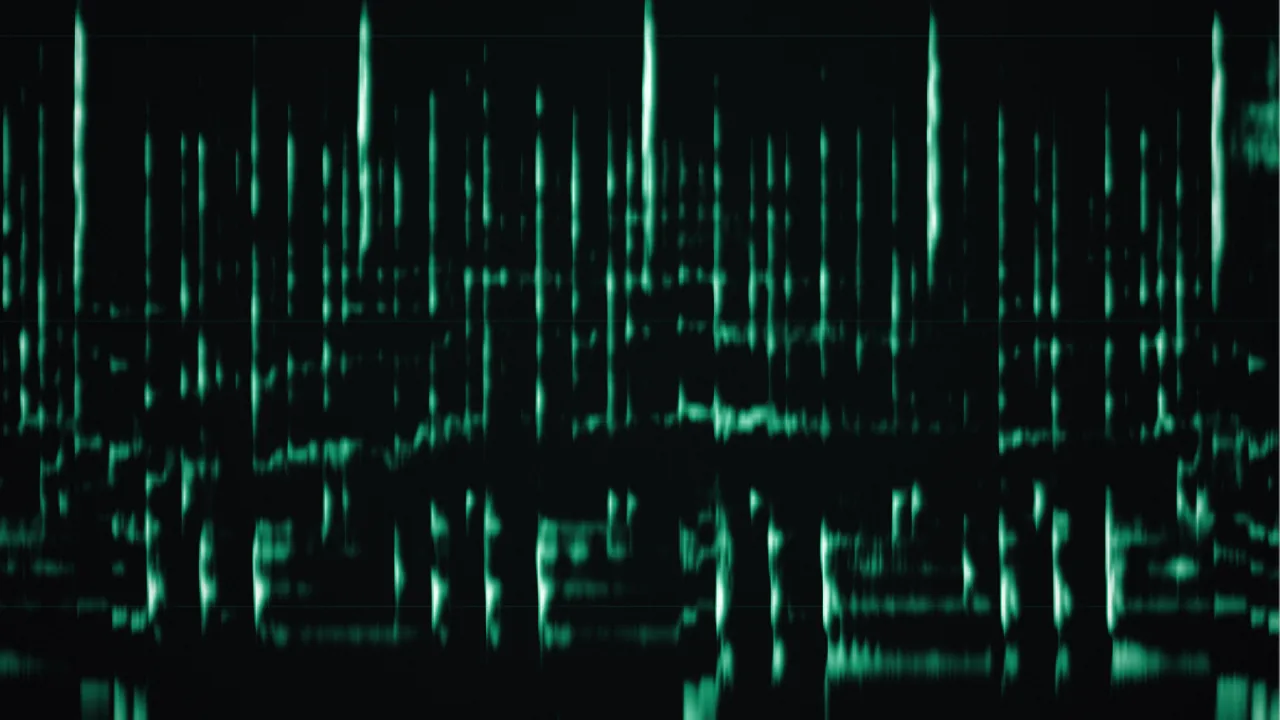
Spectrogram
Time runs left to right over the last twelve seconds, pitch from 40 Hz at the bottom to 16 kHz at the top, brightness is loudness.

Sound terrain
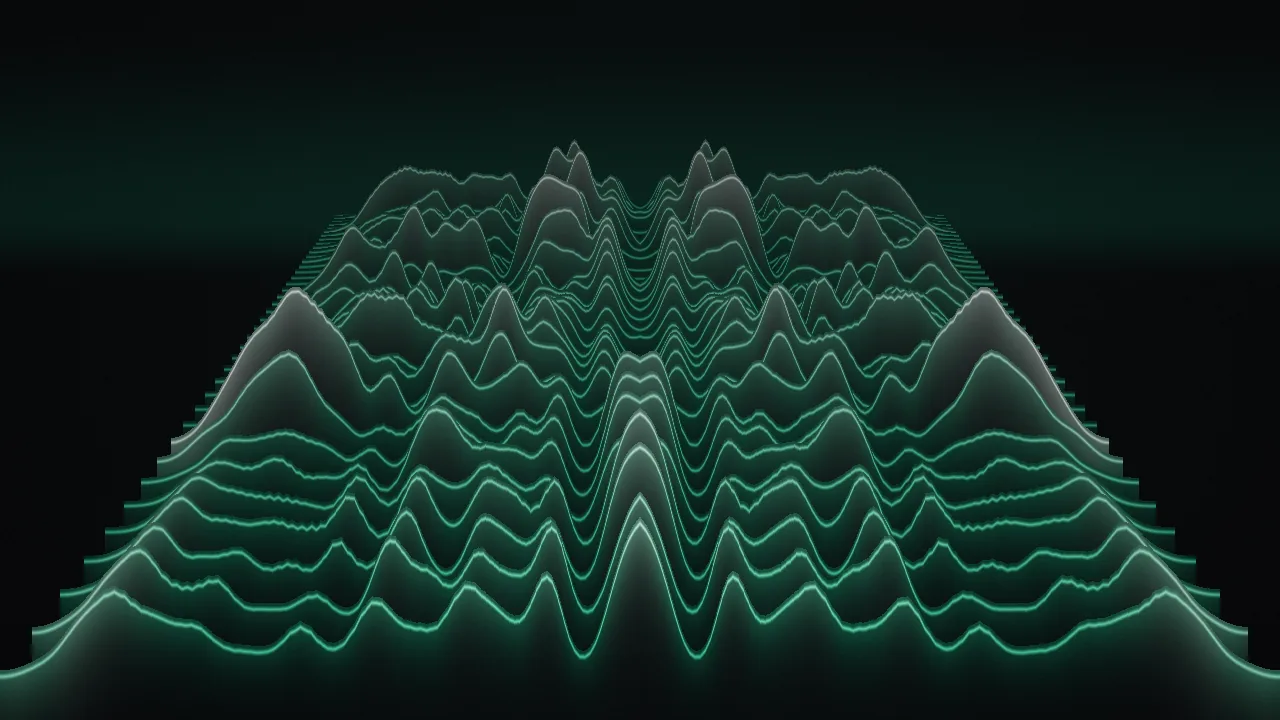
The spectrum as mountain ridges: the front ridge is now, the ones behind reach three seconds back, bass rising in the middle.
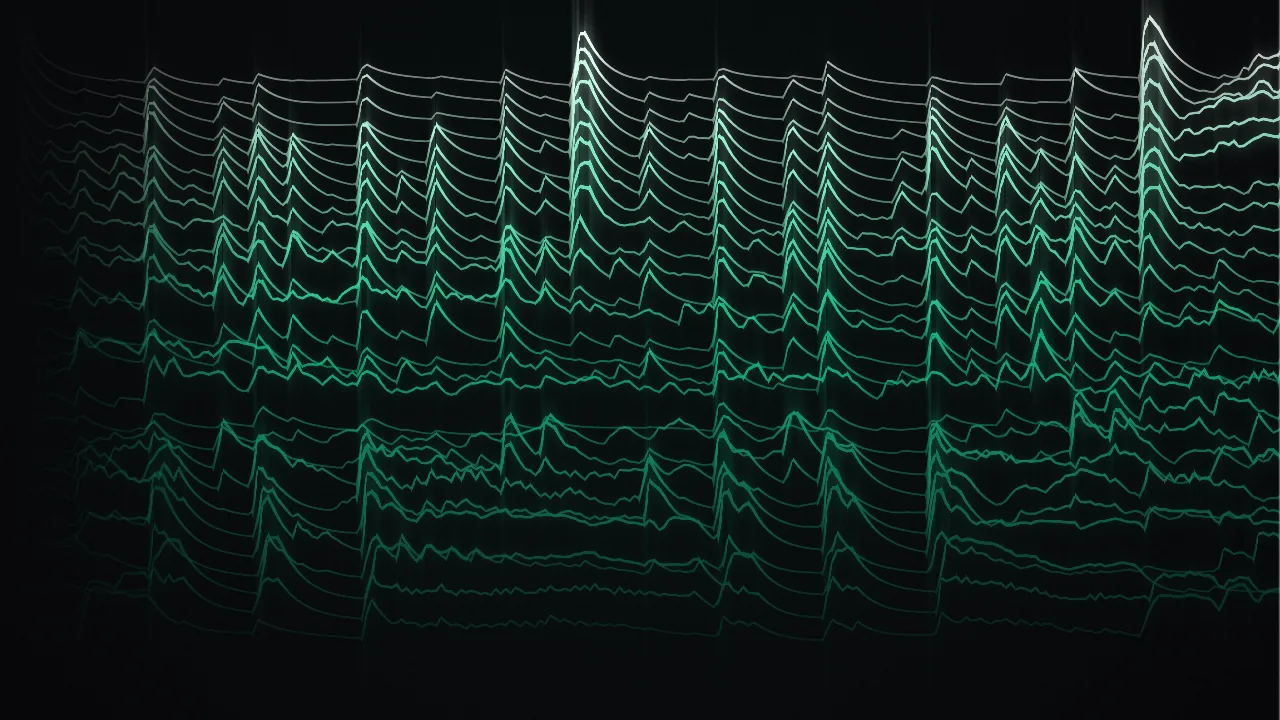
Sound threads
Twenty-eight threads, one per slice of the spectrum, each drawn over the last six seconds with bass at the bottom. A loud slice rises and thickens.

ASCII audio visualizer
The spectrum falls down the screen as characters, from a blank space for a quiet pitch up to @ for a loud one.
How to make a video of a song
Step 1 - Choose the sound
Open the audio visualizer and press Play the sample, or drop your own MP3, WAV, M4A, FLAC or OGG file on the picture. The song is listened to once, start to end, which takes a second or two.
Step 2 - Pick a mode and a look
Switch between the ten modes while the song plays. A look sets the colours: Jade, Ember, Aurora, Sunset, Rose, Cobalt, Ice, Brass, Ink, or Paper for a light page. Under the presets is a colour bar: drag a colour along it, click the bar for a new one, double-click one away, and set the ground beside it. Response sets how hard the picture moves, and Seed re-draws the particles, threads and ink in a new arrangement.
Step 3 - Save it
Save PNG gives you the picture on screen at 1920 × 1080. Save video draws every frame of the song at 60 frames a second, in 1080p or 4K (3840 × 2160), adds the song as the sound track and saves an MP4 you can post anywhere. It takes about as long as the song, often less.
What is free
- Every mode, the microphone, your own songs and PNG pictures, with nothing to sign up for.
- The video with the sound, in 1080p or 4K, for the whole song however long it is. It asks you to sign in with Google first.
- No watermark, on the video or on the picture.
Your song stays on your computer. The listening, the drawing and the video all happen in your browser. Nothing is uploaded, and signing in only tells AIKIZI who is saving a video.
Which mode for which song
A song with a strong beat reads best as Spectrum or Particles, where every kick moves the picture. Ambient and acoustic music suits Fluid or Threads, which follow the slow shape of the sound. A voice or a podcast suits the Waveform ring. To study a sound, a bird call or an instrument's notes, use the Spectrogram: a held note is a flat line and a drum hit is a short vertical stripe.
Read the song first with Sound Decode
AIKIZI's Sound Decode analyzes uploaded audio across 9 classification classes, from genre, tempo and key to mood, texture and production era. Knowing a track is slow and wide helps you choose Fluid or Threads before you start; knowing it is fast and compressed points to Particles.
Google sign-in. Sound Decode is on the Pro plan.
Try it
Drop a song and watch it become a picture, then save it as a video with the sound.
FAQ
Is this online audio visualizer free?
Every mode, the microphone, your own songs and PNG pictures, with nothing to sign up for. The video with the sound, in 1080p or 4K, for the whole song however long it is.
Does the audio visualizer add a watermark?
No watermark, on the video or on the picture.
Is my song uploaded?
The listening, the drawing and the video all happen in your browser. Nothing is uploaded, and signing in only tells AIKIZI who is saving a video.
How do I read a spectrogram?
Time runs left to right over the last twelve seconds, pitch from 40 Hz at the bottom to 16 kHz at the top, brightness is loudness.
Read next
-
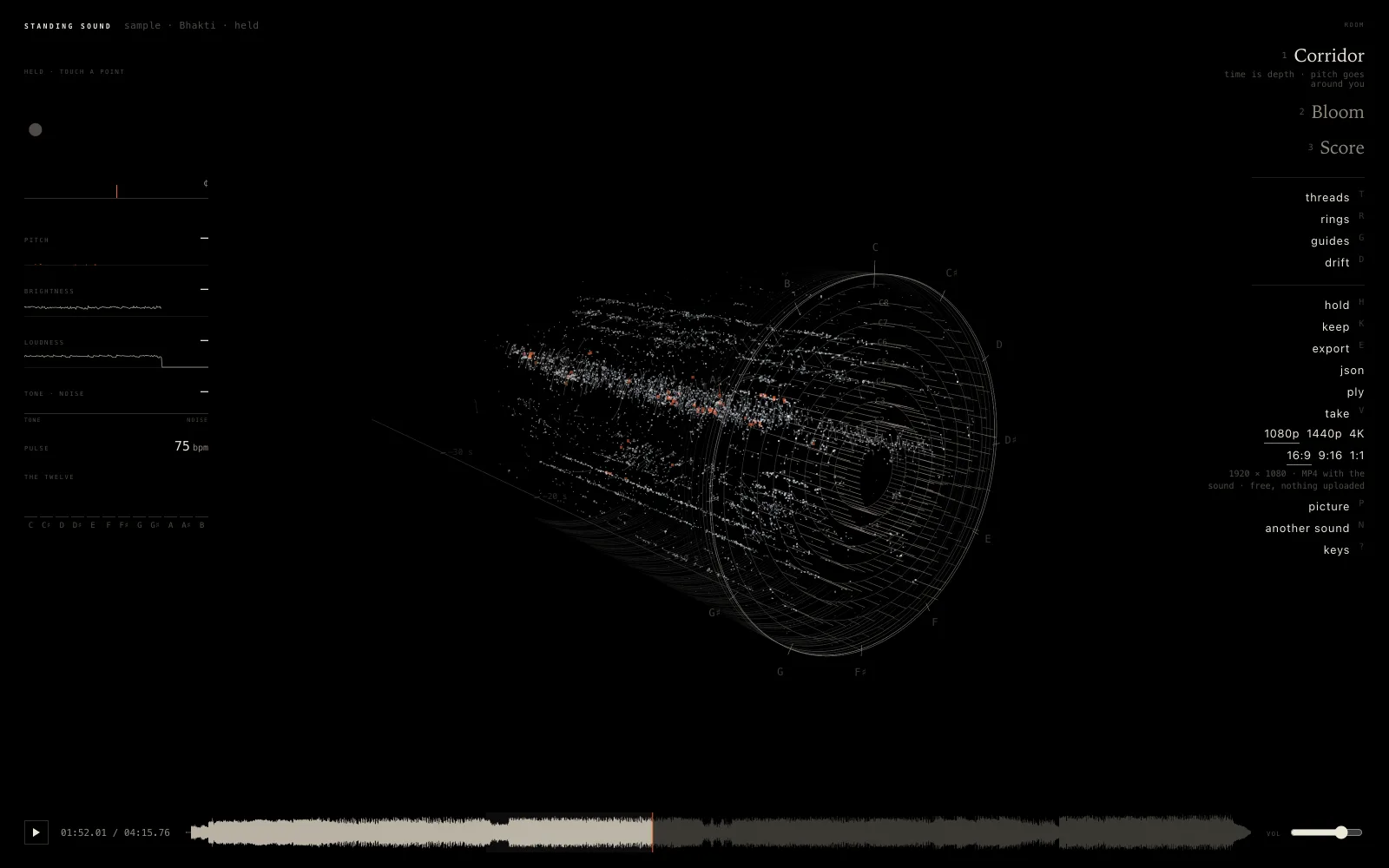 Blog
Free 3D Music Visualizer Online: 4K Video, No Sign-In
Blog
Free 3D Music Visualizer Online: 4K Video, No Sign-In
-
 Blog
Eleven Music: a track from a sentence
Blog
Eleven Music: a track from a sentence
-
 Blog
Sound effects from a sentence
Blog
Sound effects from a sentence
- aikizi.com/lab/spectrogram Lab Spectrogram, in the AIKIZI Lab
- aikizi.com/lab/microphone-visualizer Lab Microphone visualizer, in the AIKIZI Lab
- aikizi.com/lab/audio-visualizer Lab Audio visualizer, in the AIKIZI Lab
- aikizi.com/lab/dither-playground Lab Dither playground, in the AIKIZI Lab