Blog · Lab Tools / How-to
Free Music Visualizer Video Maker: 4K MP4 for Reels
Record a music visualizer video in your browser: 1080p, 1440p or 4K, 16:9 for YouTube or 9:16 for Reels. An MP4 with the sound, free, no sign-in, no watermark.
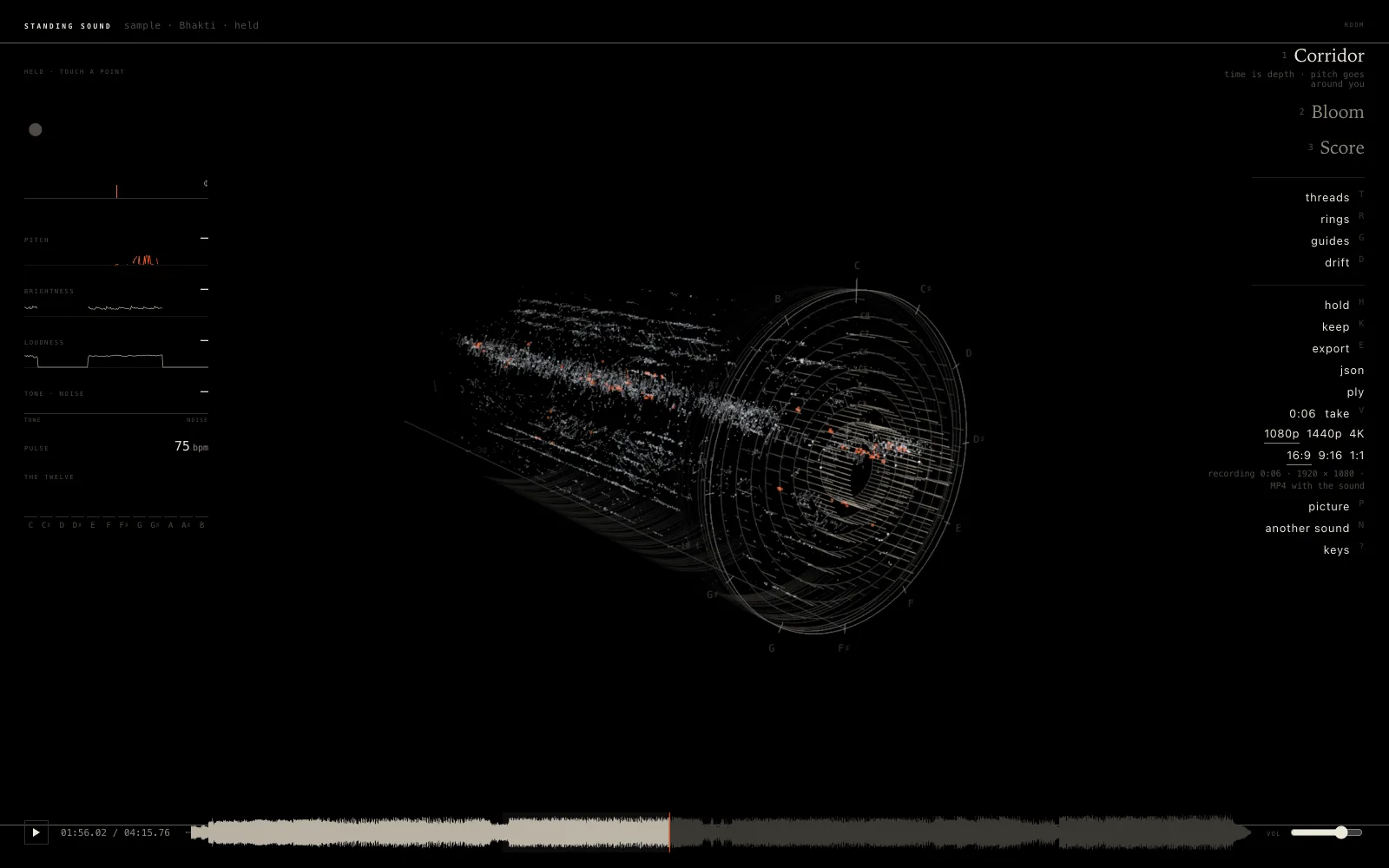
Standing Sound sets a song down in 3D, its notes, partials and beats standing where they were measured, and its Take button records what you see with what you hear. The take is drawn at the size you pick, not the size of your window, and saved as a video file on your own computer. This guide shows how to record one for YouTube, Instagram Reels or a square post.
What you need
- A current Chrome, Edge, Safari or Firefox with WebGL2. Chrome, Edge and Safari save an MP4; Firefox saves a WebM.
- A sound: your own song or video file, the microphone, a browser tab, or one of the three sample songs on the page.
- For 4K, a capable graphics card. 1080p runs on most machines.
- A phone works too: Standing Sound on a phone shows where its buttons are, and a phone held upright records 1080 × 1920 on its own.
How to record a music visualizer video
- Open Standing Sound and choose a sound: press a sample song, open your own file, or listen to the microphone or a browser tab.
- Pick a room, Corridor, Bloom or Score, and turn it to the view you want by dragging; the wheel or a pinch comes nearer.
- Under Take, choose a size: 1080p, 1440p or 4K.
- Choose a shape: 16:9 for YouTube, 9:16 for Reels, Shorts and TikTok, or 1:1 for a square post.
- Press Take, or the V key, to start. The button counts the seconds. Press it again to stop, and the file saves.
While a take runs, the room is drawn at the take's own pixel size. On screen you see it letterboxed to the take's shape, so what is inside the frame is what the file holds; the reading column and the strip stay on the page, out of the file. When you stop, the room returns to the size of your window. You can keep turning the room while it records, switch rooms, hold it still and touch points: all of that is in the video.
Sizes and shapes
| For | Shape | Size | Pixels |
|---|---|---|---|
| YouTube, a screen | 16:9 | 1080p | 1920 × 1080 |
| YouTube, a screen | 16:9 | 1440p | 2560 × 1440 |
| YouTube, a screen | 16:9 | 4K | 3840 × 2160 |
| Reels, Shorts, TikTok | 9:16 | 1080p | 1080 × 1920 |
| Reels, Shorts, TikTok | 9:16 | 1440p | 1440 × 2560 |
| Reels, Shorts, TikTok | 9:16 | 4K | 2160 × 3840 |
| A square post | 1:1 | 1080p | 1080 × 1080 |
| A square post | 1:1 | 1440p | 1440 × 1440 |
| A square post | 1:1 | 4K | 2160 × 2160 |
The size names the short side of the picture. The line under the chips names the exact pixel size and the file type before you press Take, and the page remembers your choice for next time. For Instagram Reels, 9:16 at 1080p is the size Instagram recommends.
What the file is
The take is made by your browser's own recorder, MediaRecorder, from the drawn frames and the sound. Where the browser can, that is an MP4 with H.264 video and AAC sound, the pair almost every app and site accepts. The bitrate rises with the pixels, from 20 Mb/s at 1080p to 60 Mb/s at 4K, so a large take stays sharp:
| Browser | File | Listen to a tab |
|---|---|---|
| Chrome, Edge | MP4 (H.264 + AAC) | Yes |
| Safari | MP4 (H.264 + AAC) | No |
| Firefox | WebM | No |
YouTube takes a WebM as it is. Instagram wants an MP4, so for Reels record in Chrome, Edge or Safari. Nothing is uploaded at any point: the file is written on your computer and the page never sees where you post it.
Where the sound comes from
The sound in a take is exactly what the room is listening to: the song file, the sample, the house piece, the microphone or the tab. With the microphone, your voice or instrument is in the take, though the page does not play it back to your speakers. A point you touch to hear again while recording is in the sound too, so you can play a phrase back on purpose.
Holding a file pauses it, so a take made while the sound is held or paused is silent for that stretch. Let it go, or press Space to play, and the sound returns.
4K needs a good graphics card
A take records in real time: every frame is drawn and encoded as the song plays, so the video is as long as you let it run, with no length limit set by the page. At 4K the room is drawn at 3840 × 2160 (in 16:9) while the browser encodes it, which asks a lot of the graphics card. If a 4K take stutters, choose 1080p. On a phone, 1080p is the sensible choice. For a 15 or 30 second Reel, stop the take at that length or trim it afterwards.
No song to hand? Use the samples
Three instrumentals by cyberyogi, made with Suno, come with the page, free to use in what you record here:
- Bhakti (4:16): Indian classical, a bansuri flute over strings.
- Cassettes, Rain (2:44): a lo-fi beat.
- Astral Caravan (3:50): psychedelic synthwave.
On the door, the 5, 6 and 7 keys start them. What each room shows for a song is covered in how sound looks in 3D, and the tour of the 3D music visualizer covers hold, touch and the three rooms.
Free, with no sign-in
Every size and every shape is free, with no account, no watermark and no length limit set by the page. AIKIZI's flat music visualizer also saves 1080p and 4K video, drawn frame by frame after the song is read, and asks for a Google sign-in first; Standing Sound records live and asks for nothing.
Common questions
Is the music visualizer video free, with no watermark?
Every size and every shape is free, with no account, no watermark and no length limit set by the page.
How do I make a music visualizer video for Instagram Reels?
Choose 9:16 and 1080p under Take, then press Take in Chrome, Edge or Safari so the file is an MP4. The video is 1080 × 1920.
Why did I get a WebM and not an MP4?
Firefox records WebM. YouTube takes a WebM as it is. Instagram wants an MP4, so for Reels record in Chrome, Edge or Safari.
Why is my take silent?
Holding a file pauses it, so a take made while the sound is held or paused is silent for that stretch.
Record one now
Press a sample song, choose 9:16 or 16:9, and press Take. The Standing Sound guide lists every control and key.
Read next
-
 Blog
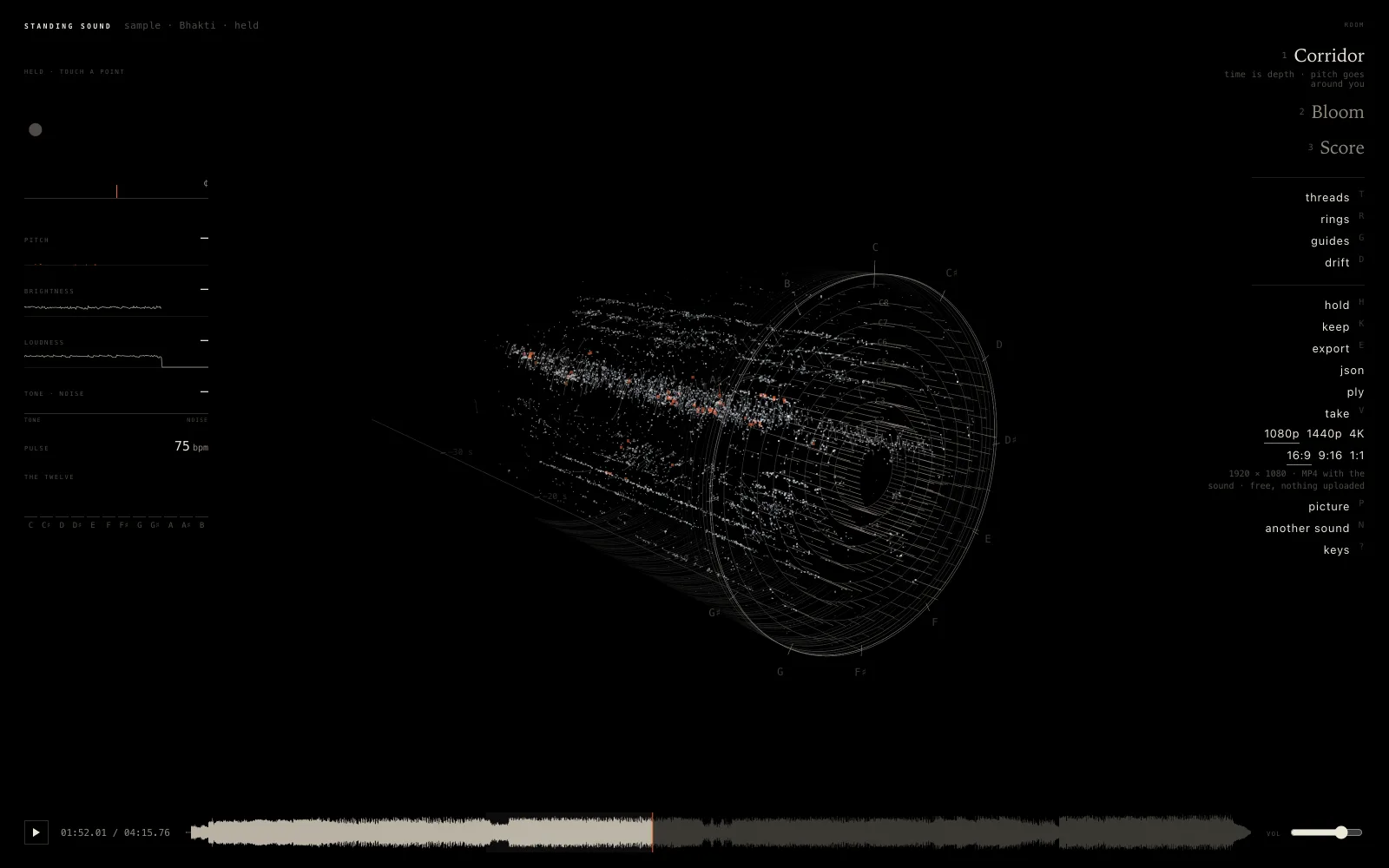
Free 3D Music Visualizer Online: 4K Video, No Sign-In
Blog
Free 3D Music Visualizer Online: 4K Video, No Sign-In
-
 Blog
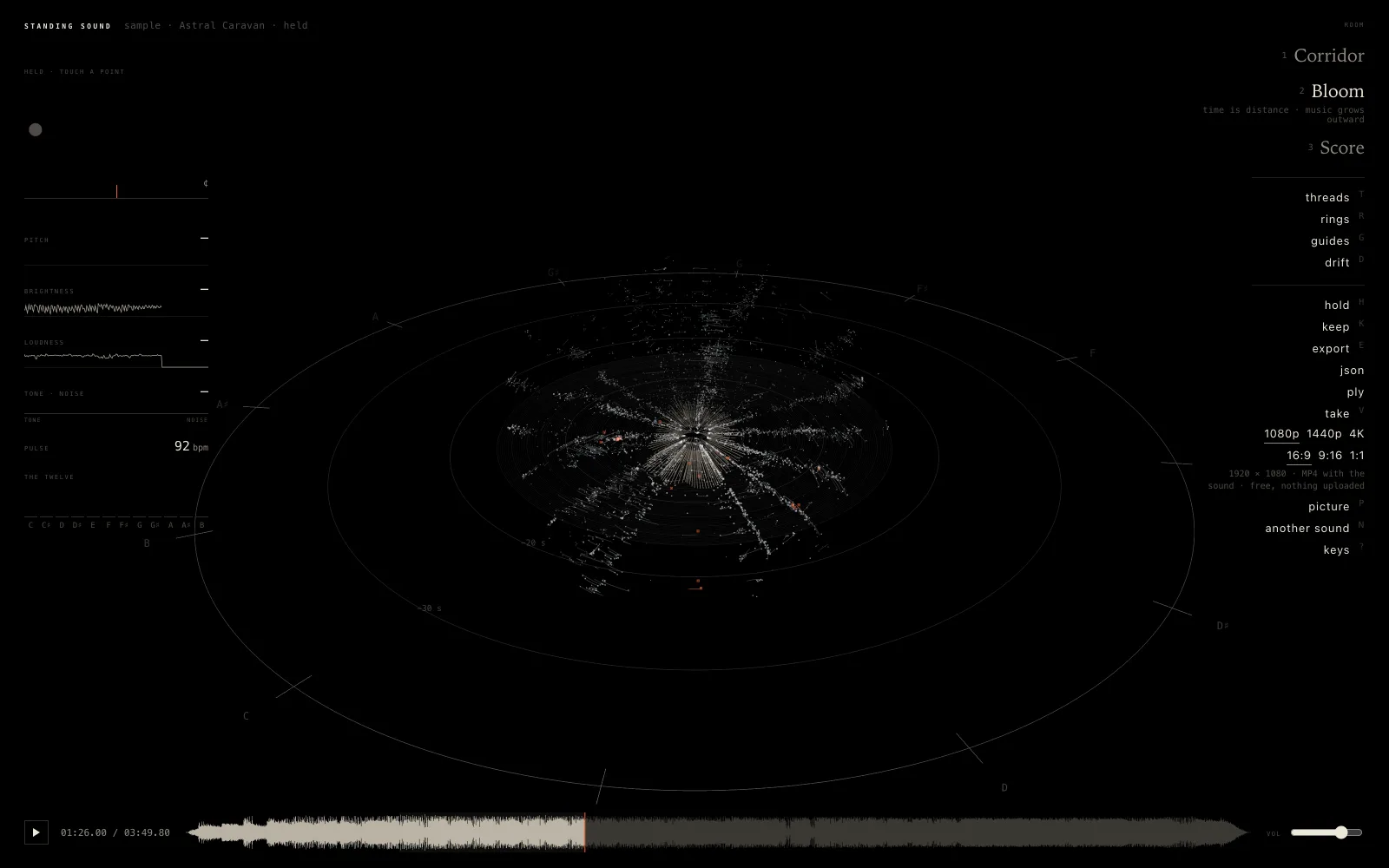
How Sound Looks in 3D: Pitch, Partials and Beats
Blog
How Sound Looks in 3D: Pitch, Partials and Beats
-
 Blog
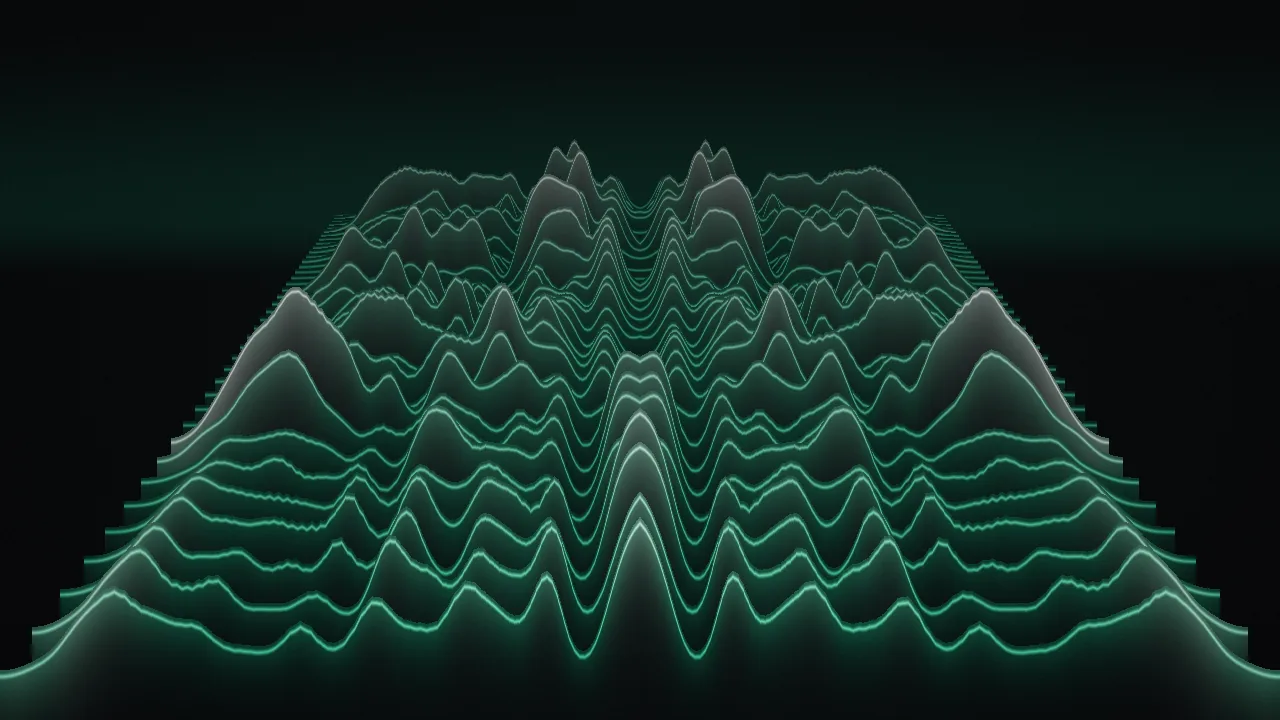
Free Online Audio Visualizer: Ten Ways to See a Song, Saved as Video
Blog
Free Online Audio Visualizer: Ten Ways to See a Song, Saved as Video
- aikizi.com/lab/standing-sound Lab Standing Sound, in the AIKIZI Lab
- aikizi.com/lab/music-visualizer Lab Music visualizer, in the AIKIZI Lab